
How to debug a Firefox add-on (extension)
Before we get started
Firefox supports browser extensions like Chromium-based browsers (Chrome, Arc, Brave, Edge etc.). Sometimes they’re referred to as add-ons in Firefox land.
This post assumes that you are debugging a browser extension you are building, i.e. have the source code for and can build it locally.
It’s also assumed that the Firefox add-on has been built, i.e. generated the files, including a manifest for the add-on to work.
The following instructions work for Firefox and Firefox Deveoper Edition.
Setup Firefox for debugging an add-on
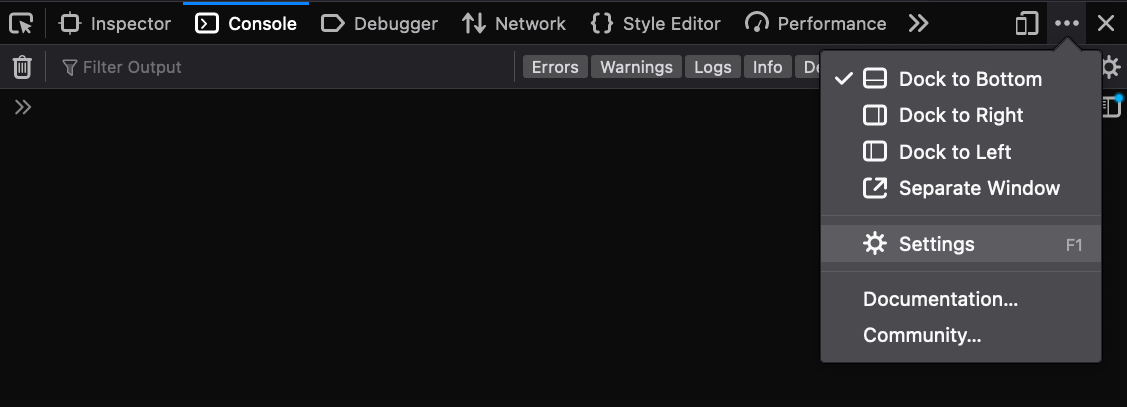
- Open the browser DevTools and click on the three dots button, then select settings.
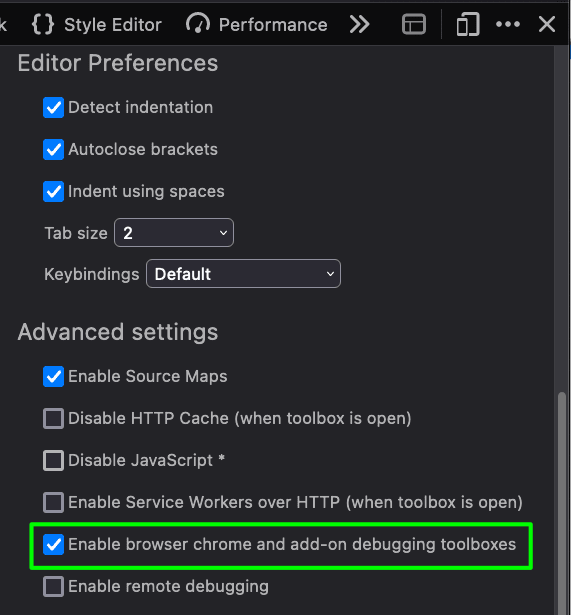
- Scroll down to the Advanced Settings section and ensure Enable browser chrome and add-on debugging toolboxes is checked.
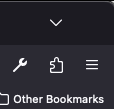
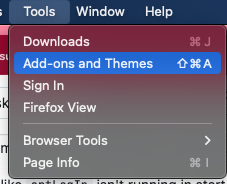
- Load the add-on by clicking on the puzzle icon in the top right of Firefox or via the application menu, Tools -> Add-ons and Themes
- Click on the cog icon to open the menu and select Debug Add-ons
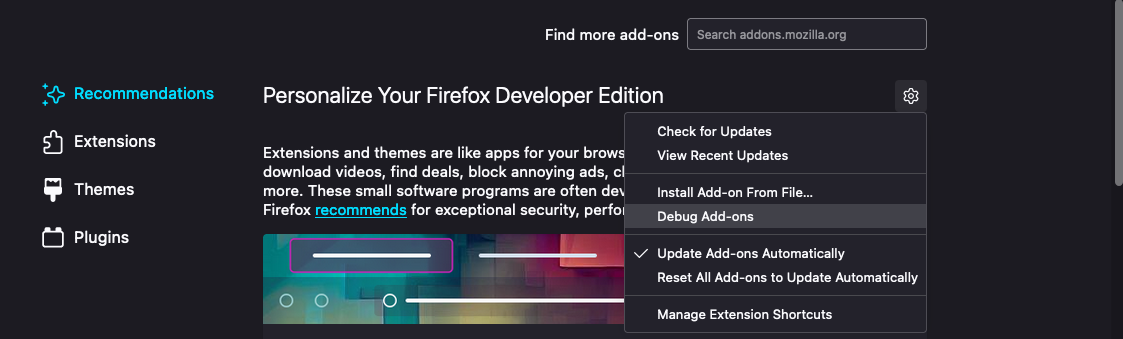
- Ensure you built the extension with the changes in my branch by running
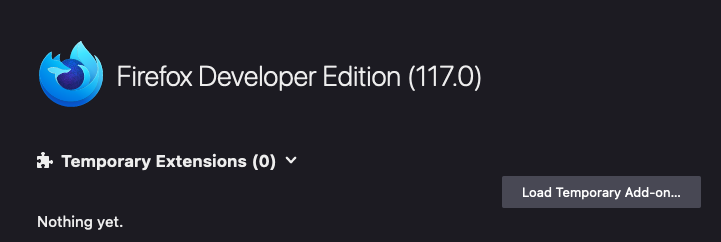
npm run build - Click on the Load Temporary Add-on... button
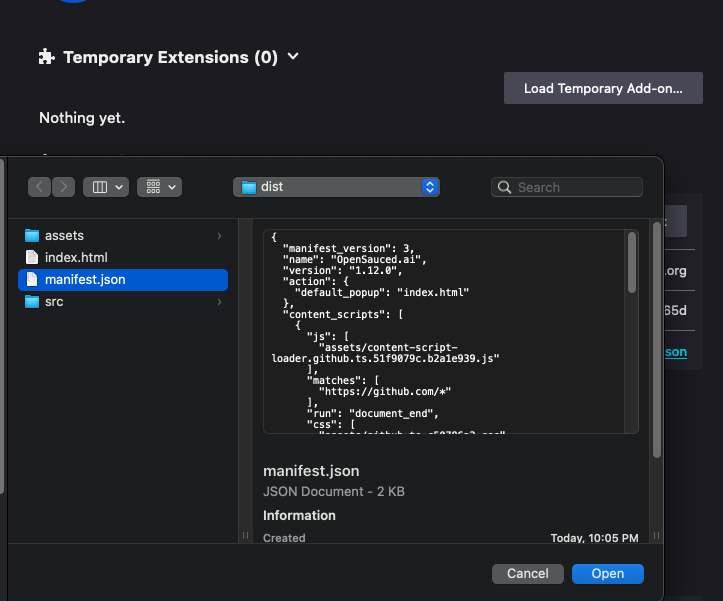
- Select the manifest file of the add-on from the OS file menu and click the Open button.
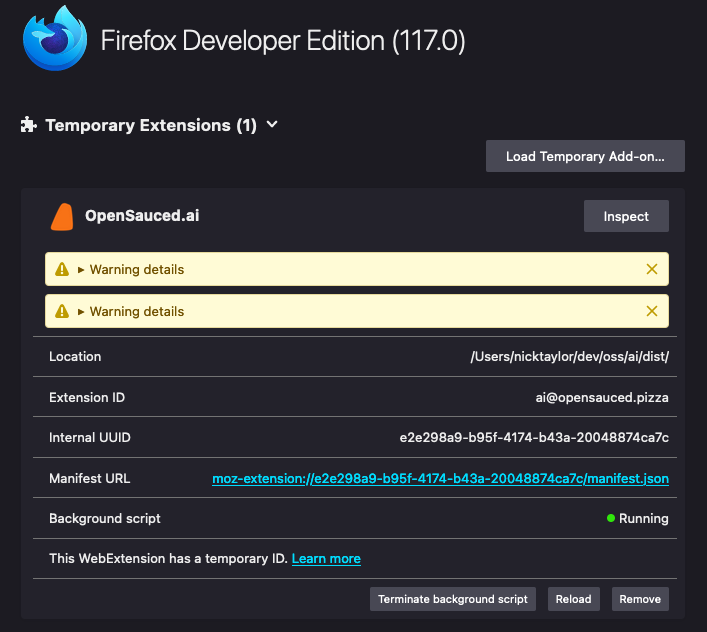
- The extension is now ready for use.
- Navigate to a page where you’re using your extension.
- If you want to debug or inspect the extension, click the Inspect button from the Temporary Extensions section where the extension was just loaded.
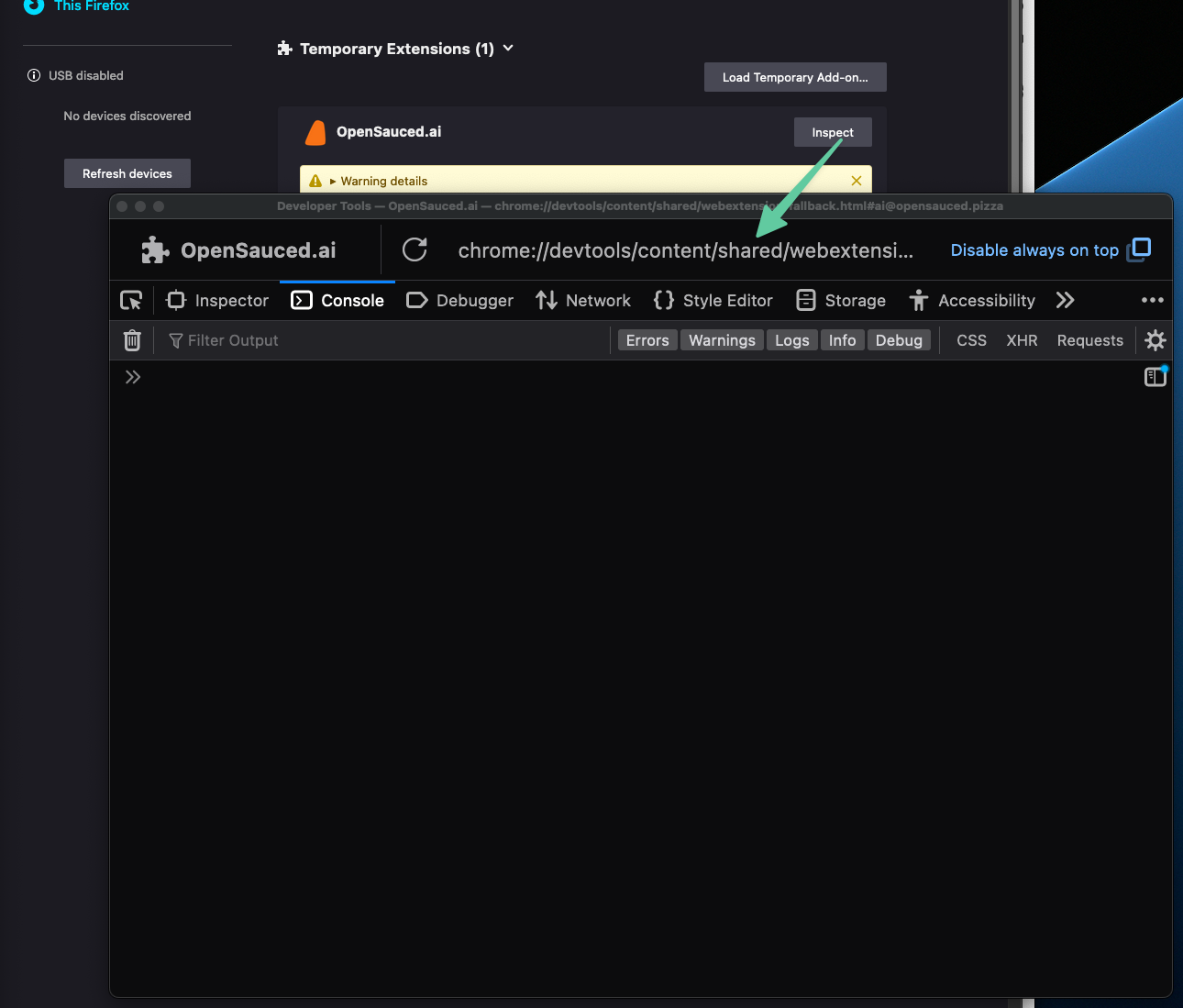
- You now have access to all the same browser dev tools you’re used to for debugging a web site, i.e. Inspect Element, CSS styles inspector, JavaScript debugger, etc.
And that’s it!
Photo by <a href="https://unsplash.com/@bist31?utmsource=unsplash&utmmedium=referral&utmcontent=creditCopyText">Birger Strahl</a> on <a href="https://unsplash.com/photos/fOV7nWWIwRk?utmsource=unsplash&utmmedium=referral&utmcontent=creditCopyText">Unsplash</a>